
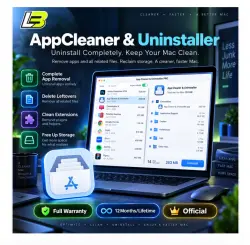
AppCleaner & Uninstaller 12 months/Lifetime
Important notice
Any third-party trademarks, brand names, and product names referenced on this website are used solely to identify the relevant goods/services and, where applicable, to indicate intended purpose or compatibility. No affiliation, authorization, sponsorship, or endorsement by the trademark owners is implied unless expressly stated.
About the product
🧹 AppCleaner & Uninstaller for macOS
Remove unwanted apps, clean leftover files, manage startup items, and control extensions from one macOS utility.
This listing includes a 12-month / unlimited license option with activation key delivery by email.
━━━━━━━━━━━━━━━━━━━━━━
🔑 License Details
✅ macOS compatible
✅ Updates supported
✅ License provided through seller affiliate account
✅ Activation by license key
Example key format:
xxxxxx-xxxxxx-xxxxxx-xxxxxx-xxxxxx
━━━━━━━━━━━━━━━━━━━━━━
📩 How You Receive Your License
Before clicking Buy, enter your correct email address in the “E-Mail” field.
Your activation key will be sent directly to the email provided with your order.
⏱ Delivery time:
15 minutes to 12 hours after purchase
Processing time depends on reseller working hours.
🕖 Store Hours:
7:00 AM to 10:00 PM
Cambodia Time, ICT / GMT+7
━━━━━━━━━━━━━━━━━━━━━━
⚙️ Activation Steps
1️⃣ Open AppCleaner & Uninstaller
2️⃣ Go to the Activation or License section
3️⃣ Enter the supplied key
4️⃣ Complete activation ✅
━━━━━━━━━━━━━━━━━━━━━━
🗑️ Remove Applications Completely
The Programs section helps remove installed applications together with related files.
You can:
✔ View installed applications
✔ Enable Expert Mode
✔ Review related caches and preferences
✔ Check support and service files
✔ Remove selected apps and associated data
━━━━━━━━━━━━━━━━━━━━━━
🚀 Manage Startup Items
Control which applications start automatically when you log in to your Mac.
Manage:
• Login items
• Launch agents
• Other supported startup entries
Disable unwanted items using the available controls.
━━━━━━━━━━━━━━━━━━━━━━
🧩 Clean Extensions
Review and remove supported extensions such as:
✔ Browser extensions
✔ Screen savers
✔ Preference panes
✔ Internet plug-ins
✔ Widgets
━━━━━━━━━━━━━━━━━━━━━━
📂 Find Leftover Files
Apps removed manually often leave files behind.
Use the Leftovers section to scan for unused application data and remove selected files to recover storage space.
━━━━━━━━━━━━━━━━━━━━━━
📄 Manage “Open With” Settings
Choose which application should open specific file types.
1️⃣ Select the file extension
2️⃣ Choose your preferred application
3️⃣ Apply the new association
━━━━━━━━━━━━━━━━━━━━━━
🌐 Official Resources
Version information:
https://nektony.com/ru/mac-app-cleaner/getting-started
Official downloads:
https://nektony.com/downloads
━━━━━━━━━━━━━━━━━━━━━━
🛡️ Support & Warranty
Your purchase includes after-sales assistance for activation-related issues.
If you experience a problem:
✅ Contact us first
✅ Send the activation error details
✅ We will review the issue during working hours
Fast support is available during our service schedule.
📌 Please contact us before leaving feedback if you experience an activation problem so we have an opportunity to resolve the issue.

 Top up
 Games
Games Discounts 90%
 AI
AI Windows
 Subsctiptions
 New Games
 Mobile Games